Counter and till
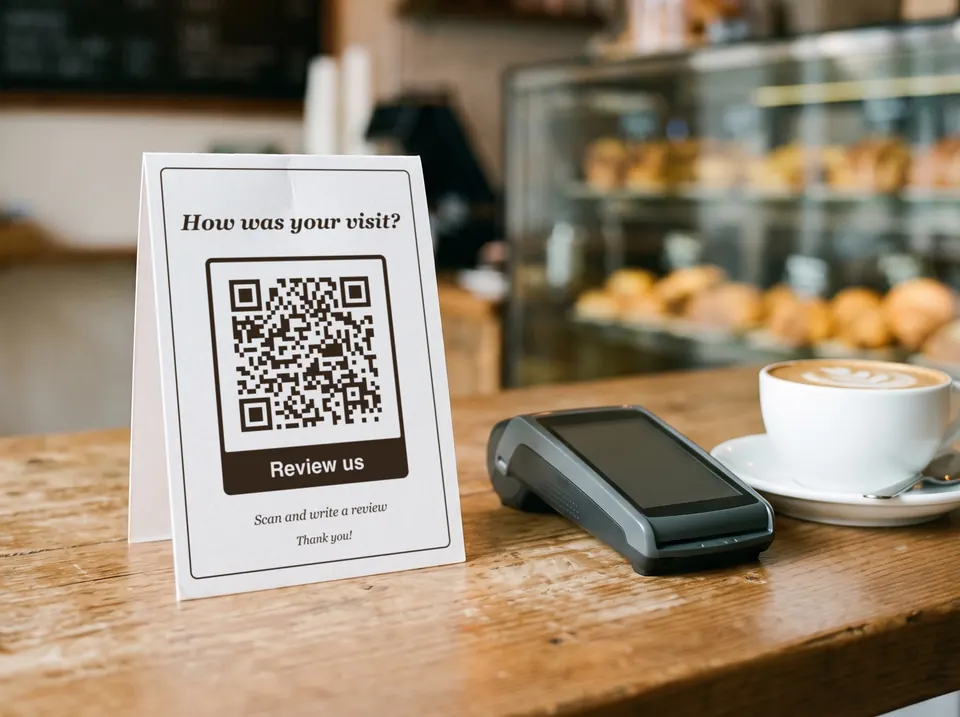
The moment after paying is the best one. A stand next to the card terminal catches the eye without you having to ask.
Google reviews · Review link
Happy customers scan and go straight to reviewing your business, instead of having to look you up on Google first. With a “Review us” frame and your logo, for the counter, table stands and business cards. Free, no sign-up and in print quality.
Last updated:
Paste the review link from your Google Business Profile. Frame, logo and colours are ready just below.
You’ll find the link in your Google Business Profile under “Read reviews” and then “Get more reviews”. Copy it and paste it here.
Fill in at least one field on the left and your QR code appears right here.
Use SVG, PDF or EPS for print. These vector files stay sharp at any size.
PNG, JPG, SVG or WebP, up to 2 MB. The file stays on your device, it is not uploaded.
Transfer codes stay without a logo: the standard requires error correction M, and with M a logo would be too risky.
The modules under the logo are left out. Test the code with two phones before printing, especially with “Large”.
Up to 24 characters. Emojis are left out so that PDF and EPS show the same text as the preview.
Higher levels survive scratches and logos but make the pattern denser.
For transfer codes the standard requires level M.
The light border is part of the code. Below 4 modules you are asking for trouble.
Advertisement
How it works
Open your Business Profile and choose “Read reviews” and then “Get more reviews”. That’s where you’ll find the link to copy. This is how Google describes it in its help for businesses.
Paste the link, choose a frame with “Review us” and, if you like, put your logo in the centre. With a logo, error correction switches to the highest level by itself.
As PDF or SVG for stands, counter signs and business cards. Scan it once yourself first: if it opens the page for reviewing your business, the link is right.
Uses
The moment after paying is the best one. A stand next to the card terminal catches the eye without you having to ask.
Next to the menu or in the bill folder. Happy guests write their review right there at the table, while the impression is still fresh.
For a practice, salon or trade business: on the back of the business card or on the card with the next appointment.
Google itself suggests putting the link on receipts. On a trade business’s invoice, a small code fits next to the bank details.
In the guest folder or on a farewell card. Many guests only write their review once they’re home, and the photo of the code on their phone reminds them.
On the delivery note or a small card that stays with the customer after installation. The code is still there a week later, when the customer is still happy with the new kitchen.
What the code contains
The code contains only the link Google gives you for sharing in your Business Profile. Here’s what matters:
Google doesn’t allow anything in return for reviews: no discount, no free drink, no entry into a prize draw. Google also explicitly forbids selectively asking only happy customers for a review. One code for everyone, with no conditions, keeps to these rules.
In practice
A code on its own catches the eye, a sentence next to it does more: “Did you enjoy your visit? We’d be glad if you left us a review.” What matters is that all customers get the same request, not just the happy ones.
On the counter, scanned from half a metre, a review link needs a side length of just under 6 cm, or just over 7 cm with a logo. A poster in the shop window needs correspondingly more. The size calculator in the guide gives you the value for your distance.
Asking for reviews means reading them too. A short, friendly reply to every review, especially the critical ones, tells future customers more than one extra star in your average rating.
In your Business Profile, you can save a QR code for reviews yourself on a computer, as an image. For print, a vector file is better: here the same link becomes an SVG, PDF or EPS, with a frame, your logo and your colours.
Good to know
The size calculator in the guide gives the right side length for every reading distance, from the business card to the shop window.
To the size calculatorIn your Google Business Profile: choose “Read reviews”, then “Get more reviews”. That’s where you copy the link. Then paste it into the generator above.
No. Google explicitly forbids anything in return for reviews, including discounts, free items or entry into a prize draw. If you break the rules, Google can remove reviews and restrict your Business Profile.
No. Google forbids selectively collecting only positive reviews or preventing critical ones. Put the code up where everyone can see it and ask all customers in the same way.
To write a review, yes. On most Android phones people are signed in anyway; on an iPhone, Google asks them to sign in the first time. Anyone can read reviews without an account.
You can. Google offers it in the Business Profile as an image to save on a computer. For stands and signs, a vector file is better because it stays sharp at any size. Here you get the same link as SVG, PDF or EPS, with a frame, your logo and your colours.
A business card is scanned from about 20 cm. A review link then needs a side length of 2.3 cm, 3 cm with a logo, plus a light border all round in each case. No code should be smaller than 2 cm.
The link belongs to your Business Profile, not to your address. If you move and change the address in the same profile, the profile stays the same. Still, scan the code once after the move to be on the safe side.